Guide
Connect your AI to Slab.
Slab speaks MCP — the open standard assistants use to connect to tools. Connect the assistant you already pay for and it can read your library, see your highlights, reply to your notes, and send you new reading. Your content is never sent to any AI company: your assistant connects to Slab, with a key only you can create — and revoke.
Two products, two flavours of the same idea. Slab Reader (iPad) runs the connection in the cloud, so your assistant can reach your library from any chat. Slab Pad (Mac) runs a local MCP server on your machine — nothing is uploaded at all. Jump to Reader or Pad.
Slab Reader — connect in two minutes
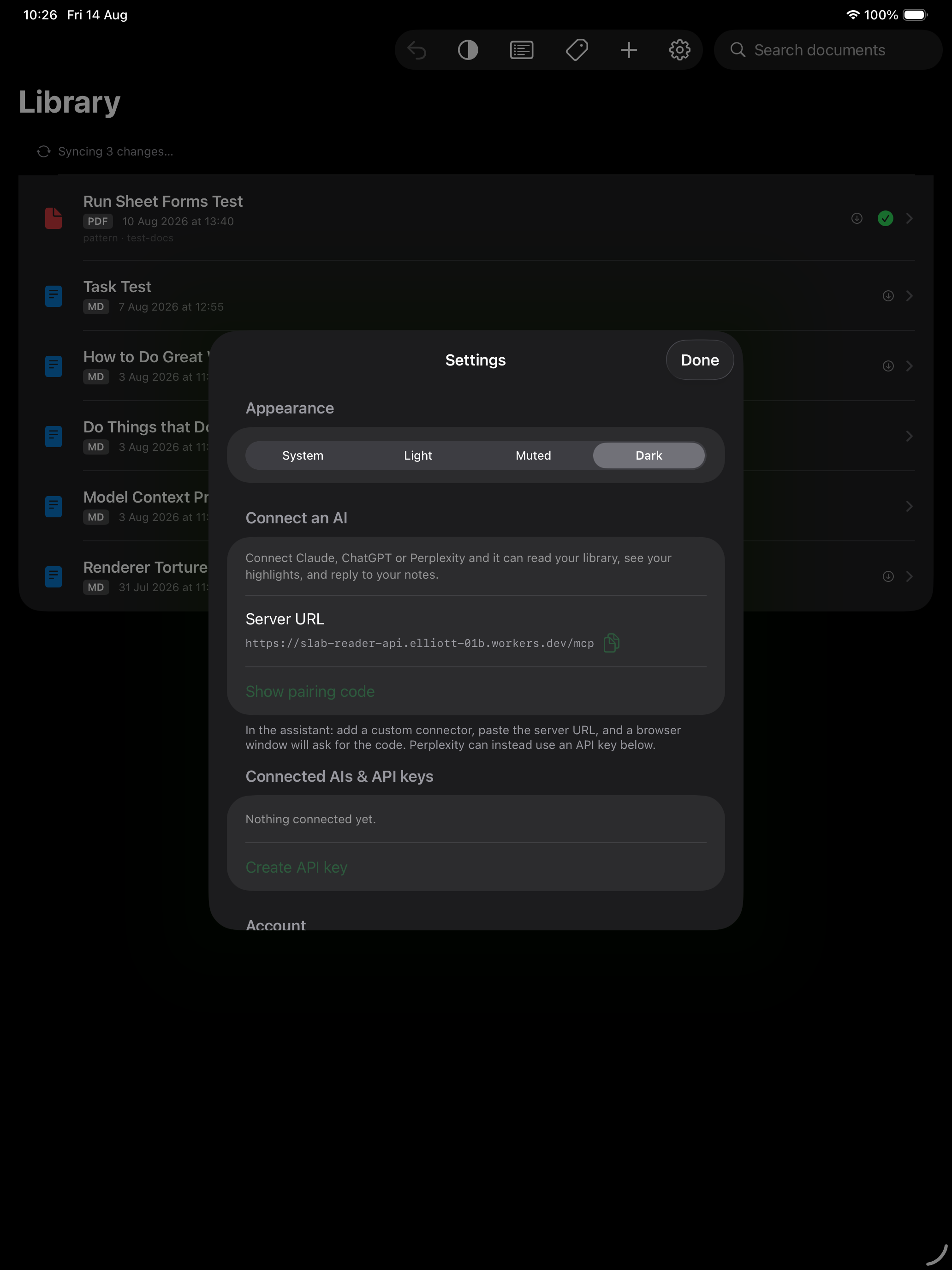
Every assistant uses the same server URL. Copy it, then follow your assistant's steps below. When a browser window opens asking for a code, get it from Slab Reader → Settings → Connect an AI on your iPad — codes are single-use and expire after 10 minutes.
https://slab-reader-api.elliott-01b.workers.dev/mcpClaude (claude.ai — Pro, Max or Team)
- Settings → Connectors → Add custom connector.
- Paste the server URL above and click Add.
- A window opens — enter the pairing code from your iPad. Done.
ChatGPT (Plus, Pro or Business)
- Settings → Apps & Connectors → Advanced settings → enable Developer mode.
- Connectors → Create → paste the server URL and choose OAuth as the authentication.
- A window opens — enter the pairing code from your iPad.
Perplexity (Pro or Max)
Two ways — pick either:
- OAuth — Settings → Connectors → Add custom connector → Remote → paste the server URL, choose OAuth 2.0, and enter the pairing code when the window opens.
- API key (no window at all) — in Slab Reader: Settings → Connect an AI → Create API key, copy the
ak_…key, and paste it into Perplexity's connector form with auth type “API Key”.
What your assistant can do once connected
- List and read every document in your library.
- See your highlights and notes — and reply in threads under them.
- Add its own marks, rendered distinctly as made by your AI.
- Send you Markdown reports and web articles to read.
- Tag documents and resolve annotations when they're dealt with.
Revoking access
Every connection appears in Slab Reader → Settings → Connected AIs (and at slab-apps.com/account), labelled by assistant. Delete one and that assistant's access stops immediately — the others are untouched.
Slab Pad — a local MCP server on your Mac
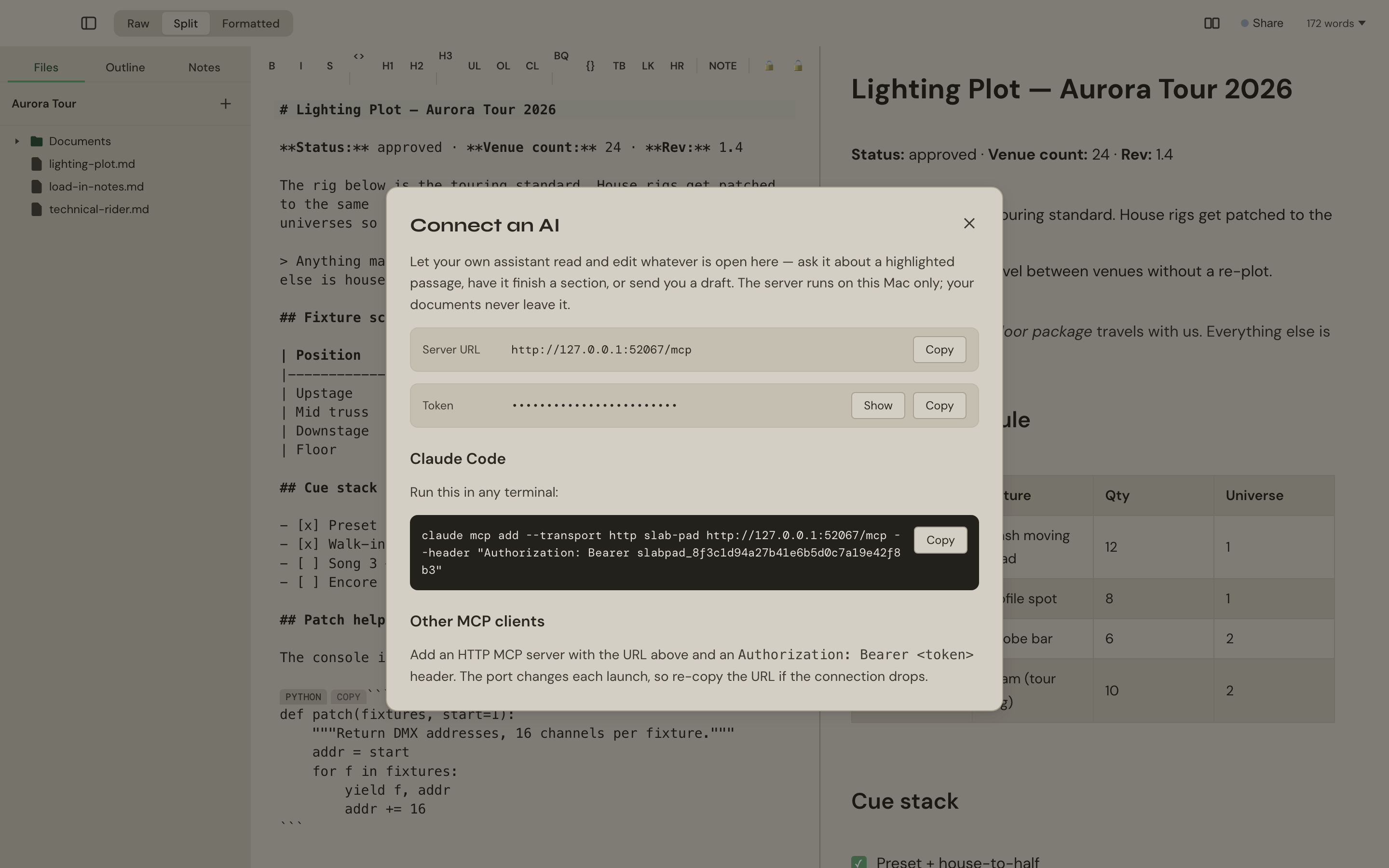
Slab Pad's MCP server runs on your machine only — loopback, token-protected, nothing uploaded. Your assistant reads what you've selected, answers questions in the margin, edits the section you're looking at, and hands you new drafts as tabs. Every AI edit is undoable with ⌘Z.
- In Slab Pad, open Connect an AI from the menu.
- Copy the one-line command it shows (for Claude Code that's a
claude mcp addcommand with the URL and token filled in) and run it. - That's it — ask your assistant to read your selection or review the open document.
Notes for the curious
- The Reader connection is standard OAuth 2.1: dynamic client registration, authorization code + PKCE. Access tokens are opaque per-user keys, stored hashed on our side.
- We never see or store your credentials for any AI service — the connection is inbound, authenticated as you.
- Google's consumer Gemini app doesn't accept custom MCP connectors yet; Gemini support lands the day Google opens that door.